 LogoPilot
How to Make a Logo Background Transparent and Fix White Edges
 Hemanta SundarayPosted on July 18, 2026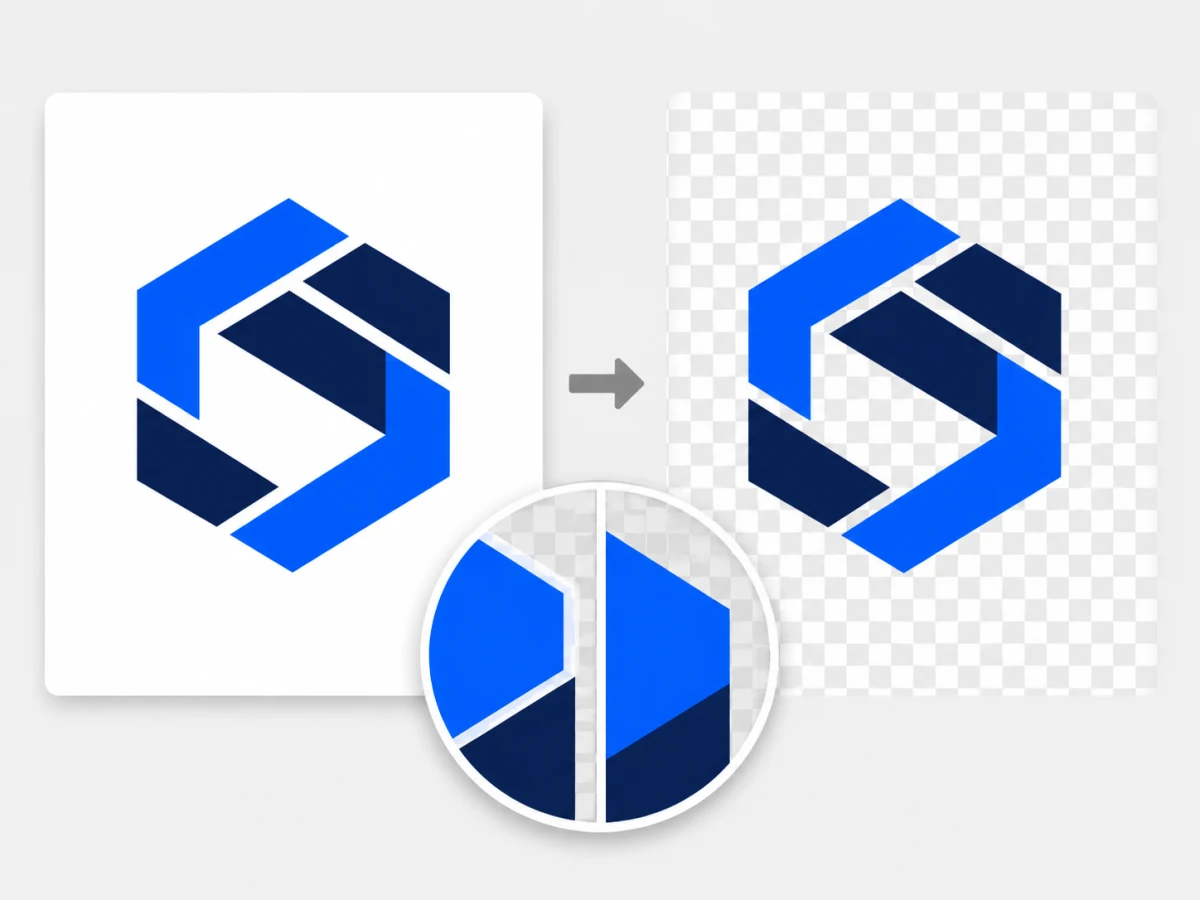
A transparent background lets you place your logo on a website, social media graphic, presentation, product image, or colored background without displaying an unwanted white box around it.
You do not need professional design software to create one. If your logo has a solid or nearly uniform background, you can remove it in your browser and download the result as a transparent PNG.
Remove your logo background with LogoPilot
How to remove a logo background
The quickest method is to use LogoPilot's free background removal tool.
- Open the LogoPilot Background Remover.
- Upload your logo as a JPEG, PNG, or WebP image.
- Select Remove background.
- Inspect the finished logo.
- Download it as a transparent PNG.
Your image is processed entirely inside your browser. It is not uploaded to or stored on LogoPilot's servers.
The tool accepts images up to 20 MB and works best with logos, icons, and simple graphics that have a solid or nearly uniform background.
What is a transparent logo?
A transparent logo is an image with no visible background behind the logo itself.
Instead of filling the empty area with white, black, or another color, the image stores those pixels as transparent. This allows the background of your website, document, or design to show through.
Image editors commonly represent transparent areas with a gray and white checkerboard. The checkerboard is only a preview. It will not appear when you use or download the logo.
When should a logo have a transparent background?
A transparent version is useful whenever your logo needs to appear on more than one background.
Common examples include:
- Website headers and footers
- Social media profile images and graphics
- Presentations
- Email signatures
- Product photographs
- Packaging mockups
- Videos
- Watermarks
- Printed marketing materials
A logo with a permanent white background might look acceptable on a white page, but the rectangular background becomes visible as soon as the logo is placed on another color.
Keeping a transparent version gives you more flexibility.
Choose the best source image
Background removal works more reliably when the original image has a clear separation between the logo and its background.
For the best result, choose an image with:
- A solid or nearly uniform background
- Strong contrast between the logo and background
- Clean, sharp edges
- No shadows behind the logo
- No background texture or gradient
- The highest available resolution
A logo on a plain white background is usually easier to process than one shown on a wall, business card, T-shirt, or photograph.
The background does not have to be white. LogoPilot can also remove black or another solid color when it is clearly different from the logo.
Why white edges appear after background removal
A thin white outline can sometimes remain around a logo after its background is removed. This is often called a white halo or fringe.
It usually happens because edge pixels contain a mixture of the logo color and the original background color. These partially blended pixels help the logo look smooth on its original background, but they become visible when the logo is placed on a darker color.
White edges are more common when:
- The original image is a JPEG
- The logo has been resized several times
- The image uses heavy compression
- The logo has a glow or shadow
- The original background is not completely uniform
- The logo was exported at a low resolution
How to fix white edges around a logo
Start with the original file
Use the original logo export whenever possible. Avoid screenshots, images copied from websites, and files downloaded from social media.
Every additional resize or compression step can introduce unwanted pixels around the logo.
Use PNG instead of JPEG
JPEG compression is designed primarily for photographs. It can introduce blurred pixels and small color variations around sharp logo edges.
If you have access to the original design, export it as a PNG before removing the background.
Converting an already compressed JPEG into a PNG will not restore the lost edge quality. It only prevents further JPEG compression.
Remove shadows and glows
A shadow or glow contains partially transparent pixels that blend with the original background. A background remover may interpret some of those pixels as part of the logo.
For the cleanest transparent result, start with a flat version of the logo without shadows, glows, textures, or three-dimensional effects.
Use a contrasting temporary background
If part of your logo is close to the background color, create a version with a different temporary background before removing it.
For example, a pale logo on a white background cannot be separated reliably because there is no visible boundary between them. Place the logo on black, dark blue, or another contrasting color first.
You can also use LogoPilot's Add Background and Padding tool to test how the finished logo looks against different colors.
Inspect the result on light and dark backgrounds
A logo can look clean on white while still containing pale edge pixels that become visible on black.
Check the transparent result against:
- White
- Black
- Your primary brand color
- A photograph
- A light gray checkerboard
Testing more than one background makes small edge problems easier to find.
Why part of the logo may disappear
Background removal works by identifying pixels connected to the outside of the image that resemble the detected background color.
Part of the logo may disappear when:
- The logo and background use similar colors
- A logo element touches the edge of the image
- The image has very low contrast
- Thin details blend into the background
- The logo includes a shadow matching the background
Try using a source image with stronger contrast and some clear space around the logo.
If the background is enclosed inside the logo rather than connected to the outside edge, it may remain visible. Complex enclosed areas may require manual editing.
What kinds of backgrounds can LogoPilot remove?
LogoPilot's background remover is designed for:
- Logos
- Icons
- Symbols
- Wordmarks
- Monograms
- Simple illustrations
- Graphics with solid backgrounds
It is not intended for photographs or images with:
- Busy environments
- Detailed textures
- Complex patterns
- Large gradients
- Hair, fur, or other intricate edges
- Several overlapping subjects
Those images require a tool designed specifically for photographic background removal or manual masking.
Should a transparent logo be PNG, JPEG, or WebP?
PNG is the safest general-purpose format for a transparent logo.
| Format | Supports transparency | Best use |
|---|---|---|
| PNG | Yes | Websites, documents, presentations, social media, and general logo use |
| WebP | Yes | Websites where smaller file sizes are important |
| JPEG | No | Logos displayed permanently on a solid background |
| SVG | Yes | Genuine vector logos that need to scale without losing quality |
LogoPilot's background removal tool downloads the finished image as a PNG because PNG supports transparency and uses lossless compression.
A JPEG cannot contain transparent pixels. If you save a transparent logo as a JPEG, the transparent area will be replaced with a solid background.
Remove extra transparent space
Removing a background does not change the image's width or height. The empty background becomes transparent, but the original canvas remains the same size.
If your finished logo has too much empty space around it, use LogoPilot's Trim Transparent Edges tool. It automatically crops unused transparent pixels without cutting into the visible logo.
This can help your logo appear larger and more balanced when used in a website header, social profile, or presentation.
Make your logo background transparent
If your logo has a solid or nearly uniform background, you can remove it without installing design software.
Upload the image, remove its background, inspect the edges, and download the finished transparent PNG.